AI Photo, Video & Image Editing Prompts
Manus.photos is a free AI prompt library for Manus, ChatGPT, and Gemini. Build prompts for AI photos—portrait, landscape, product, fashion—direct cinematic AI videos, or transform a photo you already have with one-click editing shortcuts.
Create new images, edit existing ones, or turn an idea into a video prompt—in seconds.
See what's possible
AI photos, edits & videos you can create with Manus
Three free builders, one workflow. Start from scratch, transform a photo you already have, or bring an idea to life in motion.
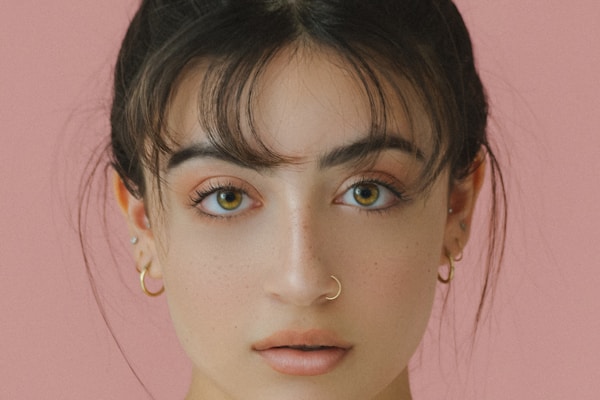
Create new image
Generate photos from a prompt
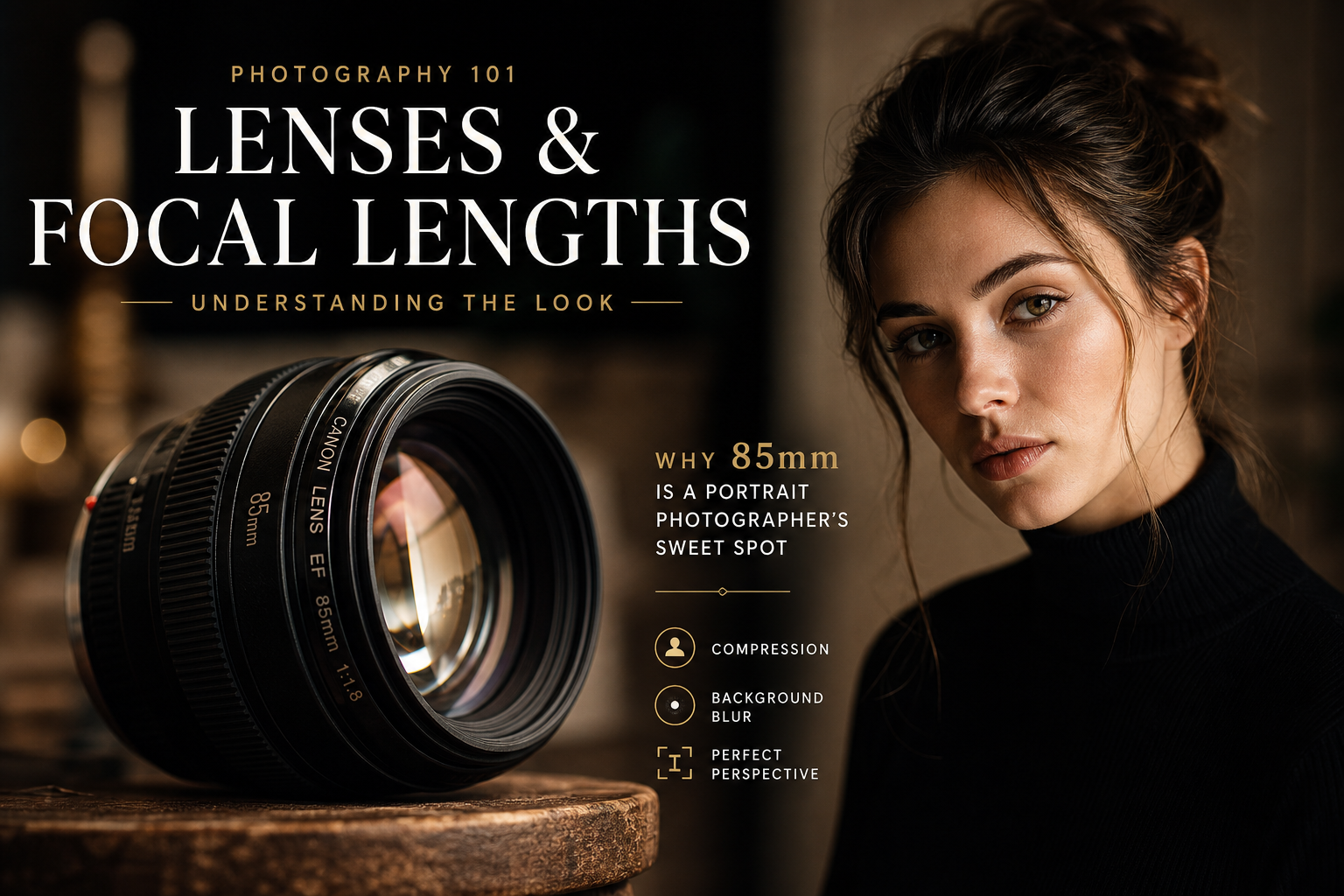
Pick from 30+ photography styles, set lighting, lens and mood, and get a polished prompt for Manus.
Open image builder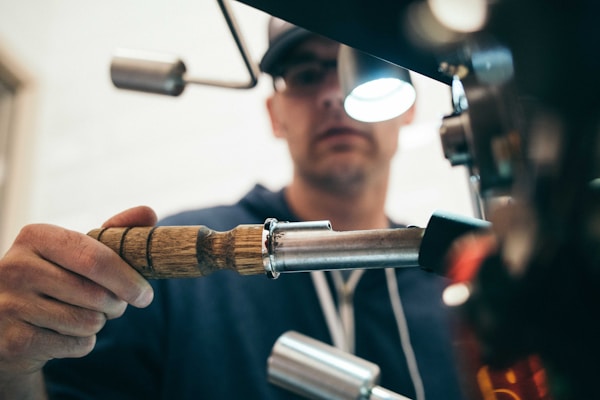
Edit existing image
Transform a photo you have
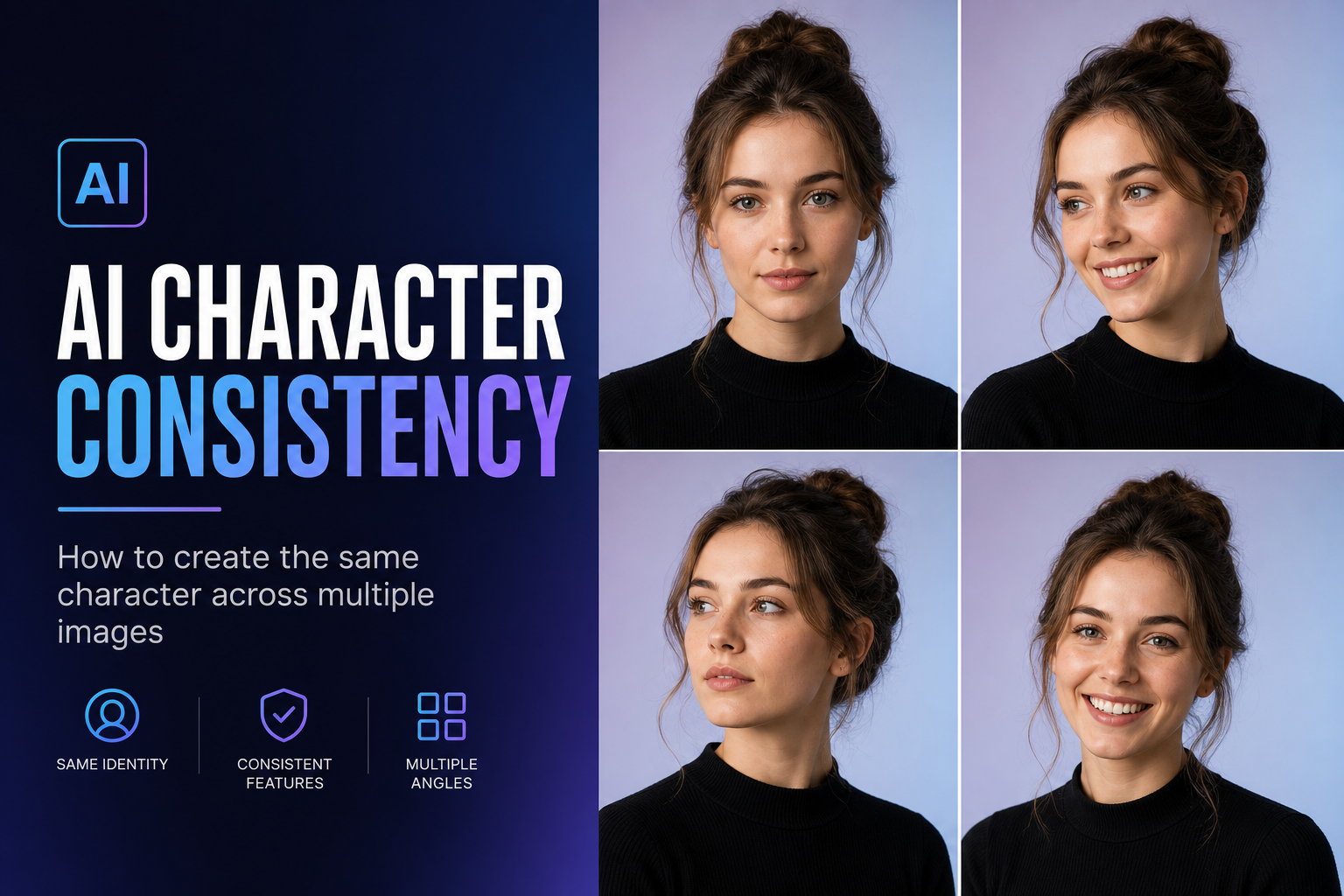
One-click AI editing shortcuts for ChatGPT and Gemini — upload your photo and paste the instruction.
Browse edit shortcuts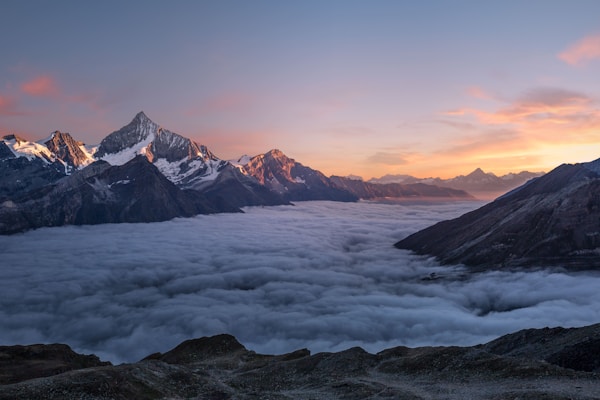
Create videoNew
Direct an AI video shot by shot
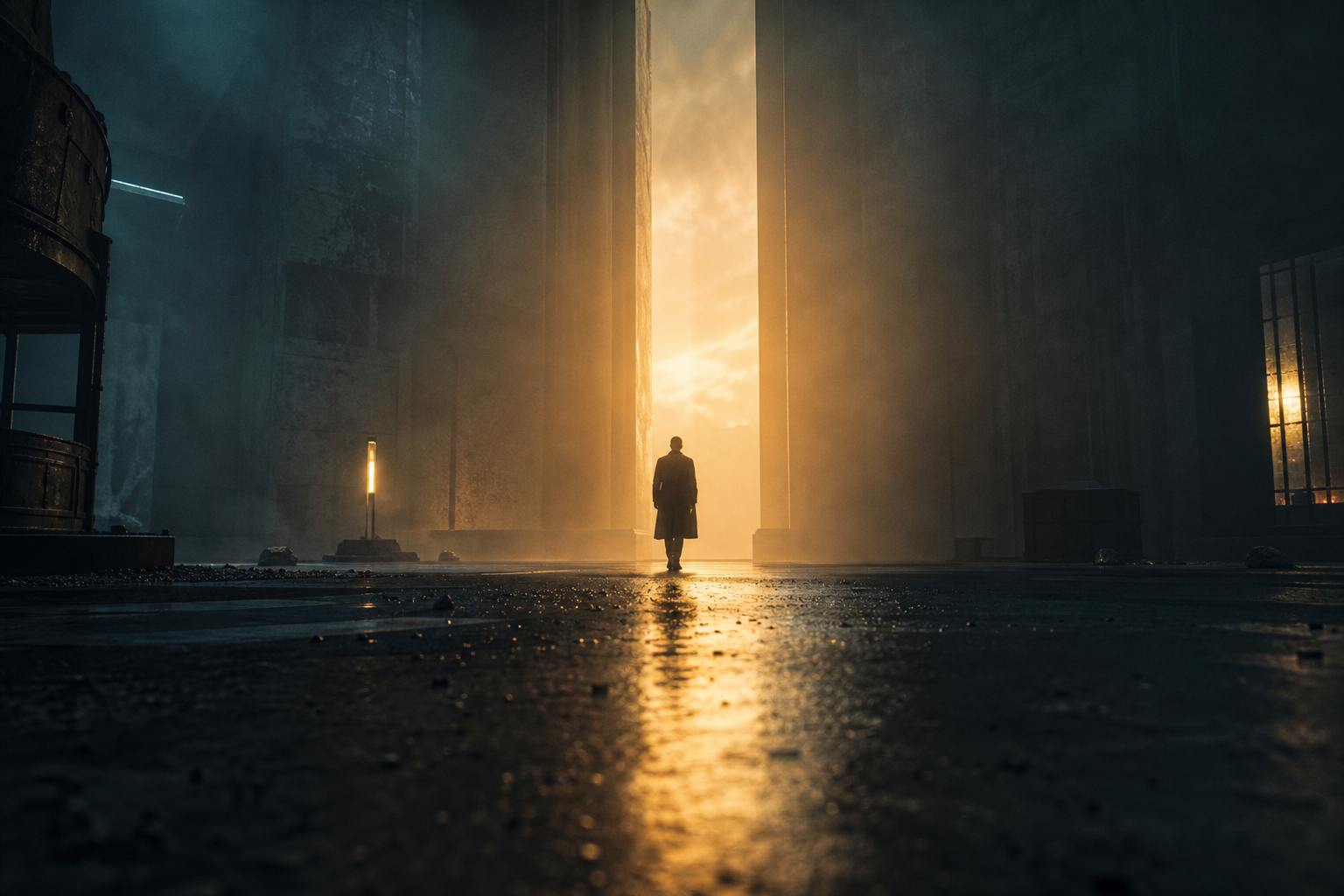
Choose camera movement, aspect ratio and duration, then copy a paragraph or timed shot list.
Open video builderPhotography Prompts, AI Image Editing & Video Prompts
Three free builders in one place: write photography prompts from scratch, transform a photo you already have with one-click editing shortcuts, or direct an AI video shot by shot.
What do you want to create?
AI Photography Prompt Builder
Generate a photorealistic prompt in 31 categories — pick a style, stack lighting, lens and mood modifiers, and copy the result.
1
Choose a category
Portrait, landscape, product, fashion, and more—pick the type of photo you want.
2
Set your options
Lighting, style, mood, and other choices—customize the prompt to match your vision.
3
Generate and use in Manus
Click Generate prompt, copy the result, then paste it into manus.im to create your image.
All categories31
Portrait prompt
Customize your prompt⚡ Quick presets
Smart Modifiers on — conflicting lighting & mood terms across your choices are auto-resolved for the cleanest result.
Your prompt
Select options and click Generate prompt to see your prompt here.
AI Image Editing Shortcuts
Transform an existing image with a focused AI instruction.
Categories
Popular shortcuts
Editing instruction
Select a shortcut above to generate an editing instruction.
AI Video Prompt Builder
Direct a text-to-video prompt for Manus, Sora, Veo, Kling or Runway — camera movement, format, pacing and a timed shot list.
1
Pick a video type
Cinematic scene, product ad, social reel, drone flight and more.
2
Direct the shot
Choose camera movement, framing, format and length—watch the live preview update.
3
Generate your video
Copy the prompt as a paragraph or shot list and paste it into Manus or any AI video tool.
All video types12
Cinematic Scene video
Direct your video prompt⚡ Quick presets
Camera movement
Format
Aspect ratio
Duration
Shot size
Look & feel
Visual style
Pacing
Audio
Scene details
Settingcombine as many as you like
Lightingcombine as many as you like
Moodcombine as many as you like
Works with Manus, Sora, Veo, Kling and Runway — motion guardrails are added automatically.
Push in
0sEstablish the atmosphere and location
2sThe subject moves through the scene, the key action unfolds
6sHold on a striking final frame
Your video prompt
Direct your shot, then click Generate video prompt — or tap a quick preset.
Create New Image mode
Getting started
How to create AI photos, edits & videos
The same four steps work for every builder—generate a new photo, transform one you already have, or direct a short AI video.
Pick a builder
Create a new image, edit a photo you already have, or create a video.
Build & copy
Choose your style, edit shortcut, or camera move, then copy the result.
Paste and generate
Paste into Manus for photos and videos—or into ChatGPT or Gemini with your photo for edits.
Download & share
Save your image or clip and share it anywhere you like.
AI Photos · Image Editing · Video
Ready to create?
Use these prompts in Manus to generate AI photos and videos—or give ChatGPT and Gemini an edit instruction for a photo you already have.
Visit Manus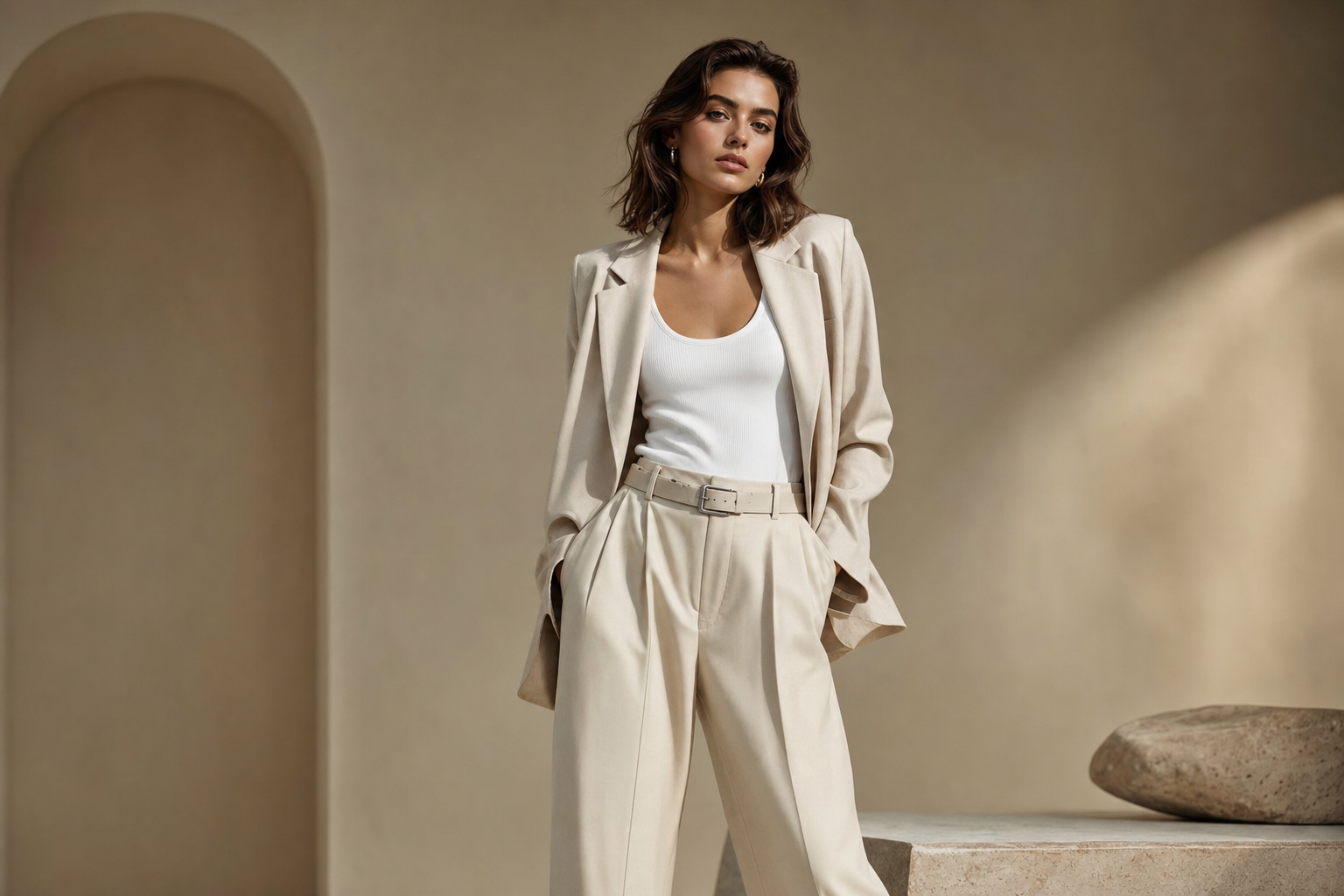
Frequently asked questions
Manus.photos is a free, independent AI prompt library for Manus, ChatGPT, and Gemini with three builders: Create New Image for AI photography prompts—portrait, landscape, product, fashion, and more; Edit Existing Image for one-click AI editing shortcuts that transform a photo you already have; and Create Video for cinematic AI video prompts.
In Create New Image mode, choose a category (e.g. Portrait or Landscape), pick your options (lighting, style, mood), click Generate prompt, then copy the result and paste it into Manus at manus.im to create your image.
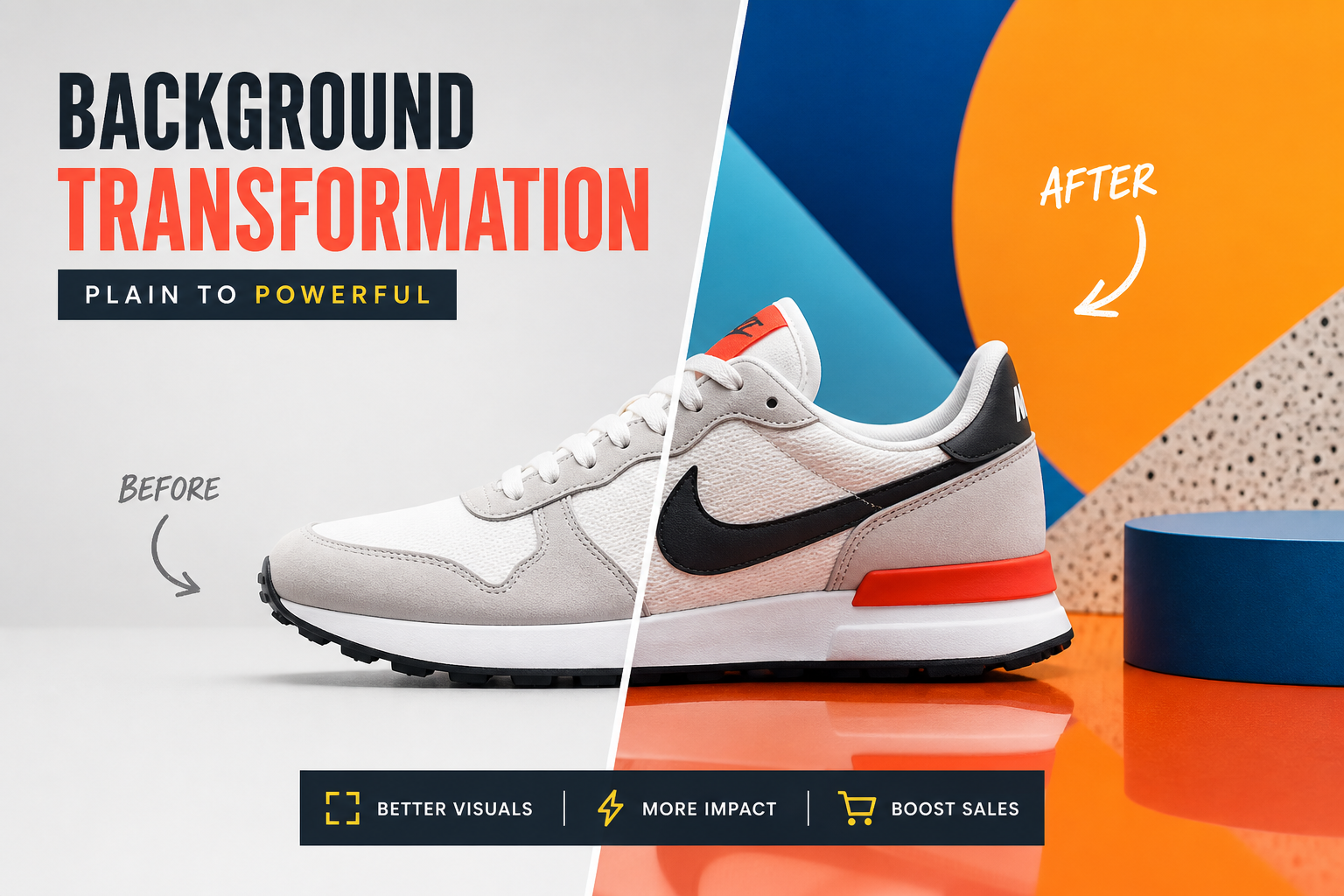
Yes. Switch to Edit Existing Image mode in the Prompt Builder to browse one-click AI Image Editing Shortcuts—remove or replace a background, create a professional headshot, change an outfit, fix lighting and color, restore an old photo, and more. Each shortcut generates a ready-to-use editing instruction you copy and paste into ChatGPT or Gemini along with your photo.
Switch to Create Video mode in the Prompt Builder and pick a video type such as Product Commercial, Social Reel, or Drone & Aerial. Choose a camera movement, aspect ratio, duration, visual style, pacing, and audio, then click Generate video prompt. Copy it as a paragraph or a timed shot list and paste it into Manus or another AI video tool such as Sora, Veo, Kling, or Runway.
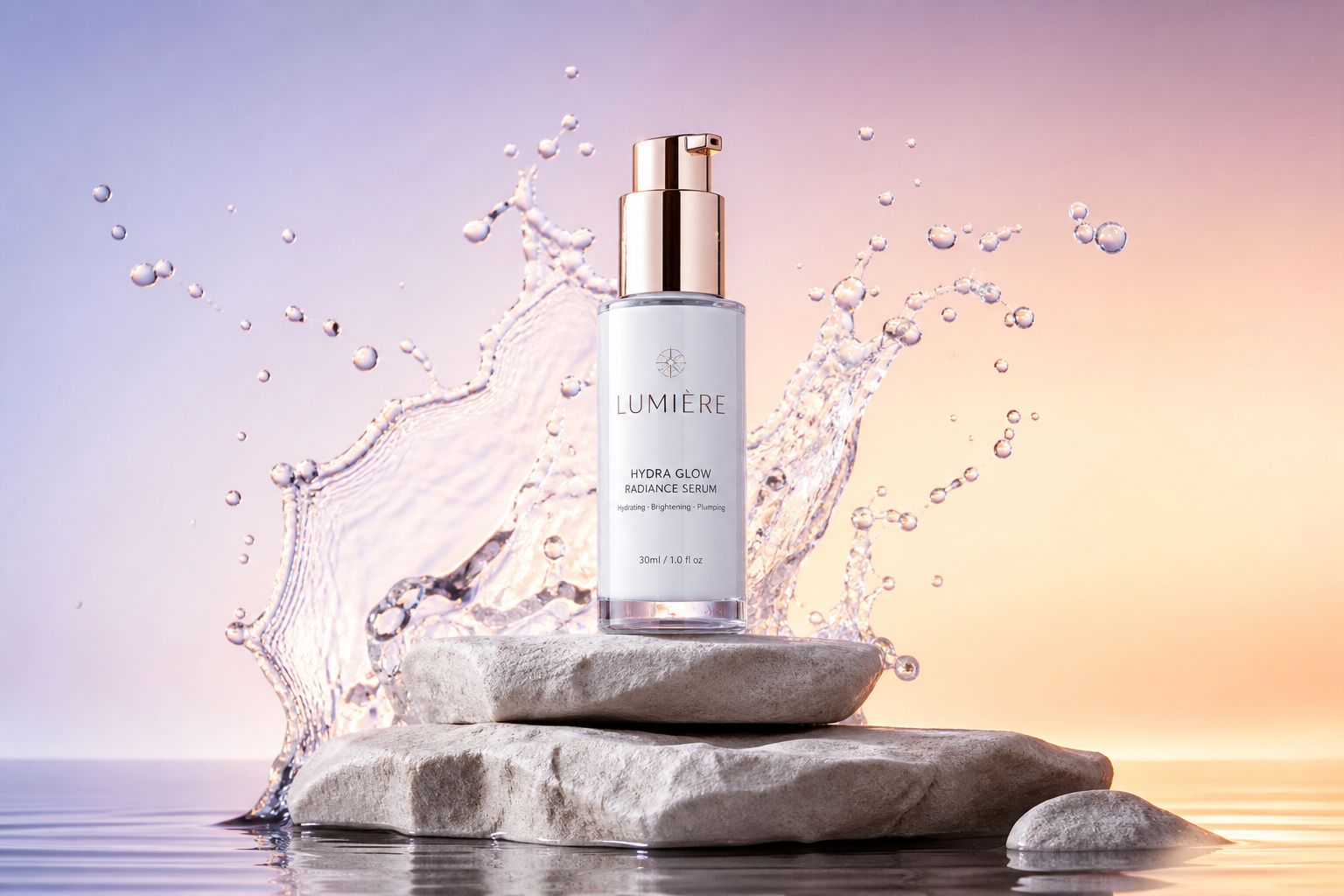
You can create cinematic portraits, landscapes, product photography, fashion shots, food photos, architecture, street, macro, night, black-and-white, vintage film, beauty, and travel photos. You can also generate short AI videos—product commercials, social reels, drone and aerial footage, fashion films, music videos, timelapses, and cinematic scenes.
No. Manus.photos is an independent resource for AI photo, video, and image-editing prompts. The official Manus website is manus.im.
Manus.photos itself is just the free prompt and instruction library—no account needed here. Create New Image and Create Video prompts are written for Manus at manus.im, and video prompts also work in other AI video tools. Edit Existing Image instructions are written for ChatGPT or Gemini, which both let you upload a photo alongside an editing instruction.